 The Golden Lanthorn
Voice and languages
How to switch on the narrator, voice commands and the Babel Lamp, and what each one downloads.
The narrator's voice, its speech recognition and the Babel Lamp's languages all run on your own computer, not an online service. Each needs a model, and the models are large, so the app doesn't include them: it asks before downloading each one, the first time you switch it on. After that, it works offline.
All three are in Settings: the cog at the top of the window, in the library or while you play.
The narrator
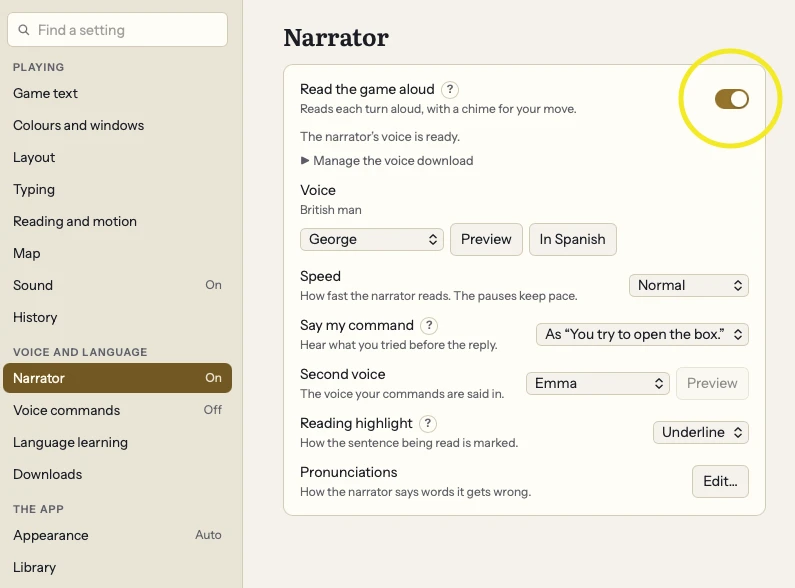
Open Settings → Narrator and switch on Read the game aloud. The first time, the app asks to download the narrator's voice, about 330 MB. Once it's ready, the narrator reads each turn aloud, with a chime when it's your turn. You can choose a voice, the speed and how the sentence being read is marked.
Voice commands
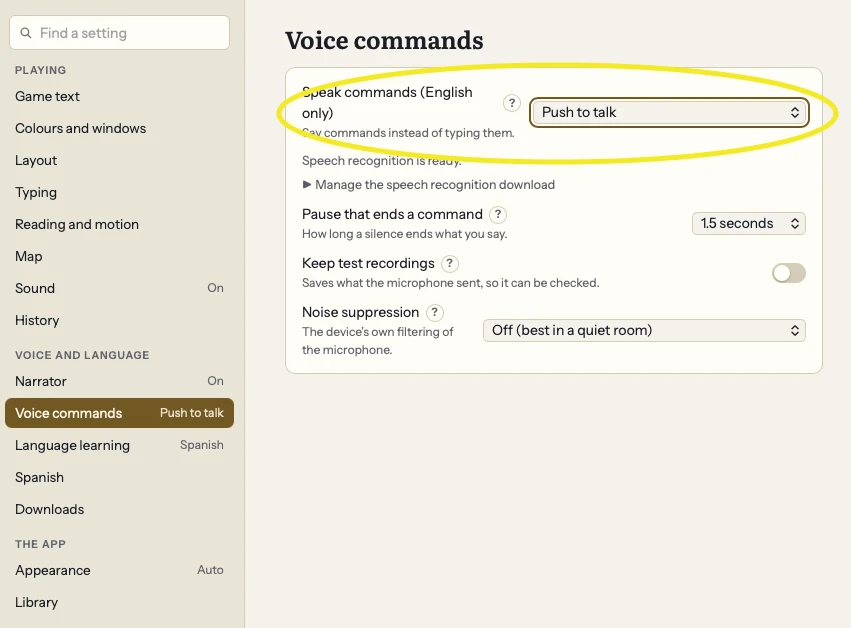
Open Settings → Voice commands and set Speak commands to Push to talk or Hands-free. The first time, the app asks to download speech recognition, about 660 MB. Allow the microphone when your computer asks.
- Push to talk listens for one command each time you press the microphone button, or
Alt+Shift+M(⌥⇧Mon a Mac). - Hands-free listens after each of the narrator's chimes.
Voice commands hear English only, even with the Babel Lamp lit. On Windows, the microphone's user is listed as “Microsoft Edge WebView2”: allow that one in Windows Settings → Privacy & security → Microphone.
The Babel Lamp
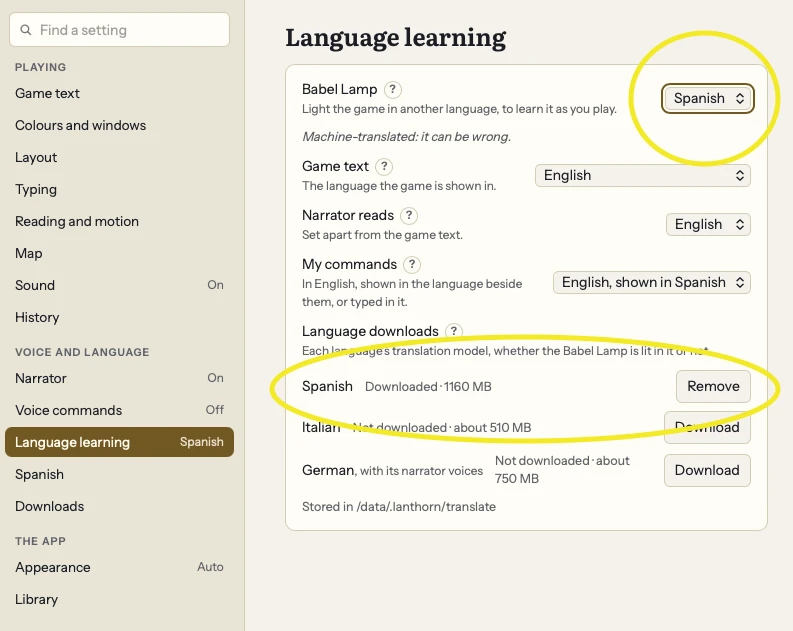
The Babel Lamp shows the game in Spanish, Italian or German, reads it aloud in that language, or both. Open Settings → Language learning and choose a language for the Babel Lamp. The first time, the app asks to download that language's translation model. Each language lists its size under Language downloads, where you can also download a language ahead of time or remove one. A language with its own narrator voices downloads them with its model.
With the lamp lit, choose what's shown in the language (Game text) and what the narrator reads (Narrator reads). My commands sets the language you type in. The app doesn't guess it from what you type:
- English: type commands in English.
- English, shown in Spanish: type in English, and each command is shown in Spanish beside it.
- Typed in Spanish: type commands in Spanish, such as “abre el buzón”. Each is read into the game's own English, which is shown beside what you typed and sent to the game. A word that can't be read is named back, and nothing is sent. Commands about the game rather than in it, such as save, restore and undo, still work in English.
Italian and German work the same way. The translation is made by a machine-translation model, a sentence at a time, so it can be wrong. Choose None to put everything back in English.
Saving disk space
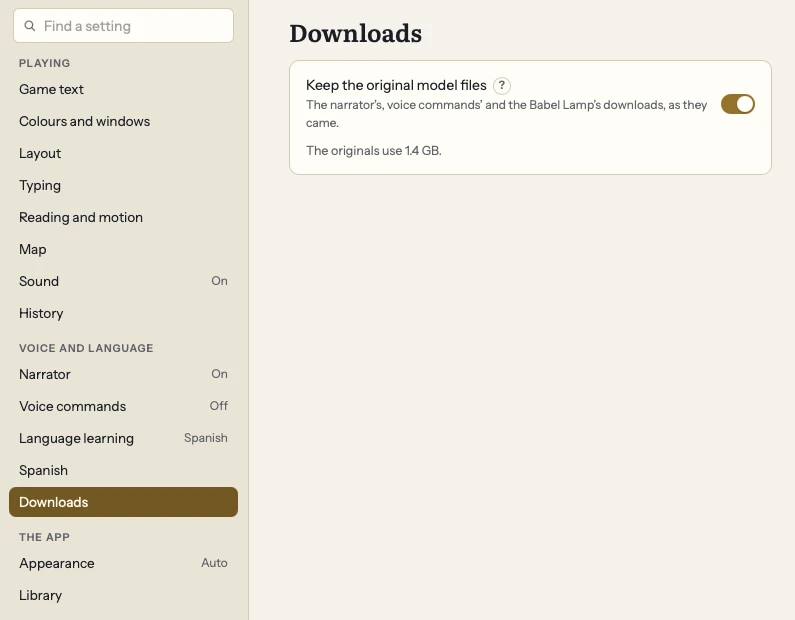
After each download, The Golden Lanthorn makes an optimised copy of the model, which loads in much less memory, and uses that. It keeps the original files too. To delete them, open Settings → Downloads and switch off Keep the original model files; the page shows how much space they use.
The only cost is that if a future update changes how the models are optimised, the originals need downloading again. Switching the setting back on downloads them again straight away.
Removing a download
Each one is removed where it was switched on: the narrator's voice under Manage the voice download in Settings → Narrator, speech recognition under Manage the speech recognition download in Settings → Voice commands, and a language with its Remove button in Settings → Language learning.
On Android, the demo and the full app each keep their own copy of the models. On Mac, Windows and Linux they share them. See the FAQ for more.